How to Make an iPhone Lock Screen Mockup
Build a realistic iPhone lock screen around your own wallpaper: set the clock and date, stack up editable notifications, and export at true iPhone resolution.
·4 min read
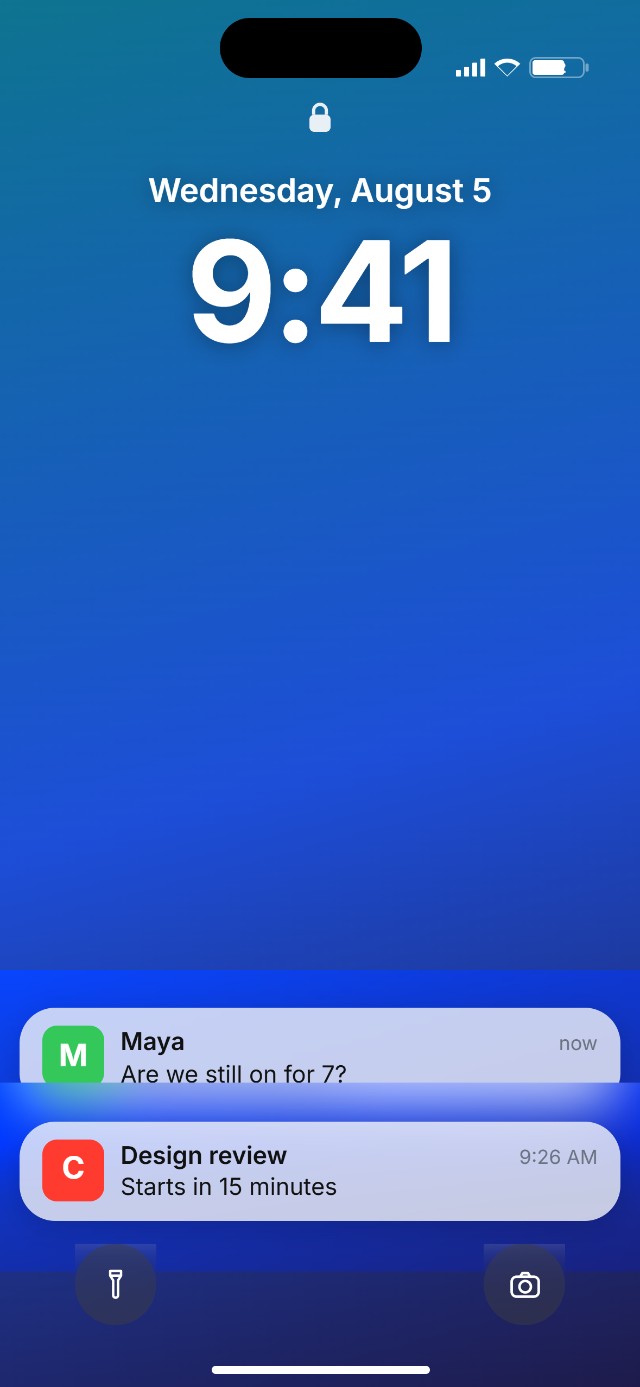
To make an iPhone lock screen mockup, open the iPhone Lock Screen Generator, choose a wallpaper, set the clock and date, and add the notifications you want. Then export at true iPhone resolution. Everything happens in the browser, over your own photo or a built-in gradient.
Start with the wallpaper
The wallpaper sets the whole tone, so pick it first. Use one of the built-in gradients if you just need a clean backdrop, or drop in your own photo when the wallpaper is the thing you are showing off — an app background, a product shot, a piece of art. The clock and notifications render on top either way.
The clock and date
The large clock and the day-and-date line above it are the anchor of a lock screen. The generator fills in today by default and lets you set the time to anything — 9:41 is the value Apple uses in its own marketing, and it tends to look right in a mockup for the same reasons.
Notifications are the part people actually want
Most lock screen mockups exist to show a notification — a message, a reminder, an app alert. Each one has an app name, a title, a line of message text, and a timestamp, and they stack with the newest at the bottom, the way iOS actually arranges them. Add up to a few, or leave them off entirely; an empty lock screen reads fine too when the wallpaper is the point.
The details that finish it
A couple of switches handle the rest: the Dynamic Island, which the newer Pro models have and the older ones do not, and the flashlight and camera buttons in the bottom corners. Matching those to the device you are portraying is a small thing that keeps the mockup from looking off to anyone who knows the hardware.
Export at the right size
Export at the device's real resolution so the mockup holds up at full size — the exact pixel dimensions per model are in iPhone screenshot sizes for every model. As always, build at the target size rather than making something small and scaling it up.
What are the elements of an iPhone lock screen?
From the top: the status bar with signal, Wi-Fi, and battery; a small lock icon; the day-and-date line; the large clock; any notifications, stacked toward the bottom; and the flashlight and camera buttons in the lower corners. Getting those in the right places, at the right weights, is what separates a convincing lock screen from an approximate one.
Something out of date or wrong here? Device specs and interface details shift with every release. Tell me and I'll fix it.
Related reading
- iPhone Screenshot Sizes for Every ModelThe exact pixel dimensions iOS writes when you take a screenshot, model by model, plus how points and pixels relate and why the numbers are what they are.
- Why Every iPhone Ad Shows 9:41Apple has put the same time on almost every iPhone it has ever advertised. The reason goes back to the 2007 keynote, and it explains why 9:41 looks right in a mockup when other times don't.