How to Make an iPhone Notes Screenshot
Turn any block of text into a clean iOS Notes screen: set the title, date, and folder, match the amber accent most tools get wrong, fit the text, and export at true iPhone resolution.
·4 min read
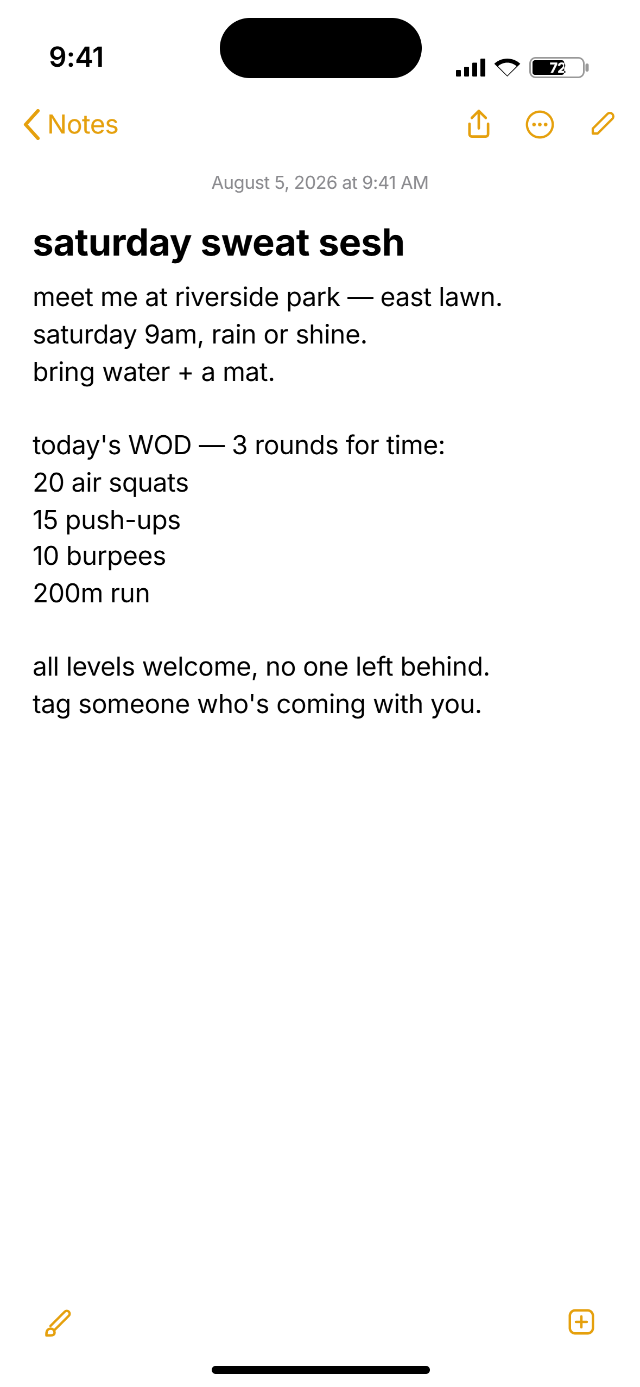
To make an iPhone Notes screenshot, open the iPhone Notes Screenshot Generator, type or paste your text, then set the title, date, and folder name. Choose light or dark, nudge the text size until it fills the screen the way you want, and export at true iPhone resolution. The whole thing happens in the browser, around your own words.
What a Notes screen is actually made of
Getting a Notes screenshot to read as genuine is mostly about the parts around your text, from the top down: the status bar with the time, signal, and battery; a back chevron pointing to the folder you came from; the row of toolbar icons; the title, which iOS takes from the first line of the note and sets in bold; a small gray date-and-time stamp underneath it; and then the body.
Each of those is a place a recreation can go wrong. The generator lays them out for you so the proportions and spacing match what the app actually renders, and leaves the ones people change most — the title, date, and folder — editable.
The accent color most tools get wrong
The single detail that gives a Notes screenshot away is the color. iOS Notes uses a warm amber accent — on the back chevron, the toolbar icons, and the active controls. A lot of generators fall back on the iOS system blue you see elsewhere, and to anyone who opens Notes every day, blue reads as immediately off. Matching the amber is the biggest single fidelity win, and it is the default here.
Light or dark?
Notes follows the phone's appearance setting, so both are correct — it is a question of where the screenshot will live. Dark tends to look right in a feed and against dark slides; light reads cleaner in a printed doc or a support article. The toggle switches the whole screen, accent included, so you are never matching colors by hand.
Fitting the text
A screenshot cannot scroll, so the real work is fitting your text into a single screen. That is what the text-size control is for: shrink it a little to get a long note fully visible, or size it up so a short line does not float in empty space. Aim for the note to look like something a person would actually have on screen — filled, but not cramped edge to edge.
Exporting at the right size
Export at the device's real resolution so the result stays sharp when it is shown full size. The exact pixel dimensions depend on the model you are targeting, which is covered in iPhone screenshot sizes for every model. The one thing to avoid is making a small image and scaling it up — no amount of correct framing survives that.
What color are the accents in iOS Notes?
Amber, not blue. Apple uses a yellow-gold accent throughout Notes, in keeping with the app's icon, rather than the system blue found in Messages or Settings. If a Notes mockup looks subtly wrong and you cannot say why, the accent color is the first thing to check.
Something out of date or wrong here? Device specs and interface details shift with every release. Tell me and I'll fix it.
Related reading
- What Every Icon in the iPhone Status Bar Means5G UC, 5G UW, LTE, the orange dot, the arrow, the crescent moon. A plain-language guide to every symbol iOS puts along the top of your screen.
- iPhone Screenshot Sizes for Every ModelThe exact pixel dimensions iOS writes when you take a screenshot, model by model, plus how points and pixels relate and why the numbers are what they are.